
How to Combine Photos on iPhone Online (No App Required)
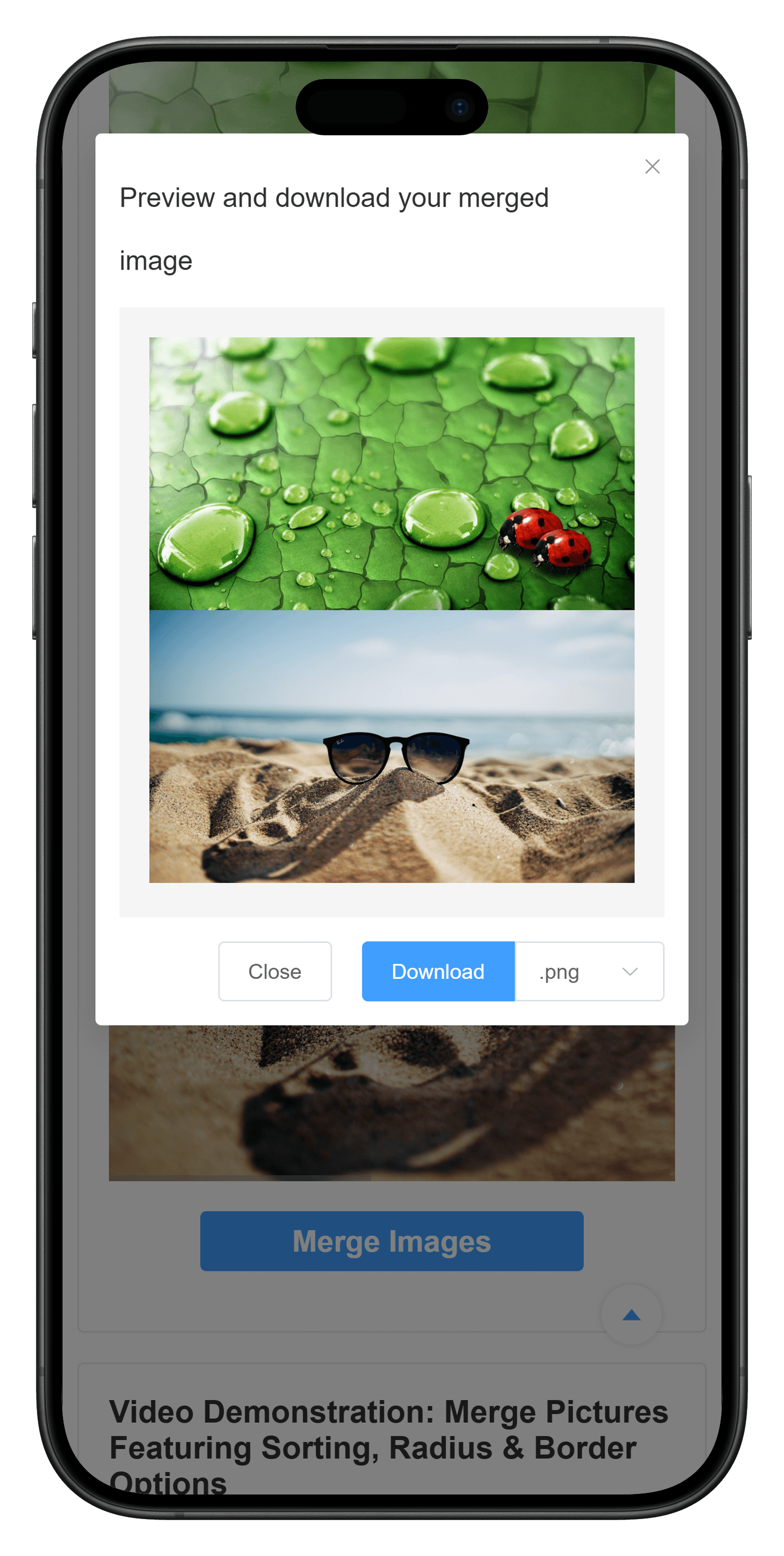
You can combine photos on an iPhone without installing a photo-editing app. Open MergePictures.net in Safari, select photos from your library, arrange them in the order you want, choose a horizontal or vertical layout, and download the result as one image.
The image processing happens in your browser. Your selected photos are not uploaded to the MergePictures.net server, which makes the workflow useful for personal photos, screenshots, receipts, and other images you would rather keep on your device.
What you need
Before you start, make sure you have:
- An iPhone with Safari or another modern browser
- At least two photos in Photos or Files
- Enough free memory for the images you want to combine
- A few seconds to review the layout before downloading
Most photos that Safari can display should work. Common formats such as JPG, PNG, and WebP are generally supported. HEIC support depends on the browser and iOS version. If a selected HEIC image does not appear in the preview, create a JPEG or PNG copy and try that file instead.
How to combine photos on iPhone in Safari
Step 1: Open the image combiner
Open Safari and go to MergePictures.net. You do not need to create an account, install an app, or sign in.
Tap the upload area to open the iPhone file picker. Depending on your iOS version, you may see options such as Photo Library, Choose File, or Take Photo.
Choose Photo Library when the images are in the Photos app. Choose Files when they are stored in iCloud Drive or the Files app.
Step 2: Select the photos
Select the photos you want to combine, then confirm your selection. The selected images will appear as thumbnails on the page.
For the cleanest result, start with photos that have similar dimensions and orientation. You can still combine a portrait photo with a landscape photo, but the final layout may contain more empty space or require one image to be scaled.
Step 3: Arrange the photo order
The thumbnail order determines where each photo appears in the combined image. Drag the thumbnails to rearrange them before merging.
Order matters when you are creating:
- A before-and-after comparison
- A sequence of screenshots
- A progress timeline
- A left-versus-right product comparison
- A photo story that should be read in a specific direction
On a small iPhone screen, drag deliberately and check the preview after moving a photo. If the order does not change on the first attempt, touch and hold the thumbnail briefly before dragging it.
Step 4: Choose a layout
Choose the layout that matches how you want people to view the result:
- Horizontal: Places photos next to each other. This works well for comparisons, two-person photos, and before-and-after images.
- Vertical: Places one photo above another. This works well for screenshots, instructions, receipts, and images that will be viewed on a phone.
If you want a multi-row collage instead, open the photo collage maker and choose a grid layout.
Step 5: Adjust the appearance
Open the layout settings if you want to refine the result. Available controls include:
- Output size behavior
- Space between photos
- Outer margin
- Rounded corners
- Background color
Use a small amount of spacing when the photos need a clear visual separation. Use no spacing when screenshots or scanned pages should look continuous.
When photos have different resolutions, use the smaller output-size baseline to avoid enlarging a low-resolution image unnecessarily. Enlarging a small photo can make it appear soft or blurry.
Step 6: Preview and download
Tap Merge Images to generate the combined image. Review the preview carefully before downloading:
- Confirm the photo order
- Check that no important content is cropped or too small
- Make sure the background and spacing look intentional
- Zoom in to check text in screenshots
Tap Download when the result is ready. Safari may save the file to the Downloads folder in Files. Depending on the iOS and Safari version, it may instead open the image or show the Share menu. If that happens, use Save Image or Save to Files.
How to put two photos side by side on iPhone
For a side-by-side image, select two photos and choose the horizontal layout. Put the image you want on the left first in the thumbnail list, then place the right-hand image second.
Side-by-side layouts are useful for:
- Before-and-after comparisons
- Product or design comparisons
- Two versions of the same screenshot
- Travel photos from two locations
- Progress photos taken on different dates
If one photo is much taller than the other, consider cropping it in the iPhone Photos app before combining. Similar aspect ratios produce a more balanced result.
For more layout details, see the general guide to merging two pictures online.
How to stack photos vertically on iPhone
Select the vertical layout to place one image above another. Put the top image first in the thumbnail list and the bottom image second.
Vertical merging is usually better for mobile viewing because the finished image stays readable without requiring horizontal scrolling. It is particularly useful for:
- Long screenshot sequences
- Step-by-step instructions
- Receipts and scanned pages
- Conversation screenshots
- Top-and-bottom comparisons
Use zero spacing for a continuous long image. Add a small gap or background color when each image represents a separate step.
Online image combiner or iPhone Shortcuts?
The built-in Shortcuts app can combine images, but it requires setting up or importing a shortcut and choosing its options correctly. It is useful when you repeat the same automated workflow frequently.
An online image combiner is usually more convenient for occasional tasks because you can see the layout, reorder photos, adjust spacing, and preview the result before downloading it.
Choose based on your workflow:
| Use an online combiner when | Use Shortcuts when |
|---|---|
| You want a visual preview | You repeat the same task often |
| You need spacing, margins, or rounded corners | You want an automated action |
| You want horizontal, vertical, or grid options | You already have a trusted shortcut configured |
| You do not want to install another editing app | You prefer an entirely native workflow |
Privacy when combining personal photos
MergePictures.net reads and processes the selected images locally in your browser. The image files and generated result are not uploaded to the MergePictures.net server.
Only select the photos needed for the current task. When you close or refresh the page, the temporary browser references used for the selected images are released. For more sensitive images, you can also close the Safari tab after confirming that the downloaded result is saved.
Common iPhone problems
A selected photo does not appear
Safari may not be able to decode the file format, or the image may be unusually large. Try a JPG or PNG copy. If you selected many large images, combine them in smaller batches.
The photos appear in the wrong order
Return to the thumbnail list and drag them into the correct sequence. For a horizontal layout, the first image appears on the left. For a vertical layout, the first image appears at the top.
The result looks blurry
Start with the original photos rather than screenshots of those photos. Avoid enlarging a low-resolution image to match a much larger one. When combining images of different sizes, use the smaller sizing baseline where possible.
The downloaded image is not in Photos
Check the Downloads folder in the Files app. If Safari opens the result instead of saving it, use the Share menu and choose Save Image.
Safari becomes slow with many photos
Large images consume device memory while they are decoded and combined. Close other heavy tabs, use fewer images, or process the photos in batches. For a larger set, read the guide to combining multiple images online.
Frequently asked questions
Can I combine two photos on iPhone without an app?
Yes. Open MergePictures.net in Safari, select two photos, choose a horizontal or vertical layout, and download the combined result.
Are my iPhone photos uploaded?
No. The selected images are processed locally in your browser and are not uploaded to the MergePictures.net server.
Can I combine more than two photos?
Yes. You can select multiple photos, subject to the available memory and performance of your iPhone. Process very large collections in smaller batches.
Can I create a photo grid on iPhone?
Yes. Use the online photo collage maker to arrange multiple images in a grid, adjust spacing and corners, and download the result.
Can I combine screenshots as well as photos?
Yes. Screenshots can be arranged horizontally or vertically just like other images. Vertical layouts are especially useful for turning several screenshots into one long image.
Combine your iPhone photos
You do not need a dedicated photo-merging app for a simple side-by-side image, vertical stack, or photo grid. Open MergePictures.net in Safari, select the photos, choose a layout, preview the result, and download one combined image.
The process is free, has no watermark, and keeps image processing in your browser.