
How to Combine Multiple Images Online (Free, No Watermark)
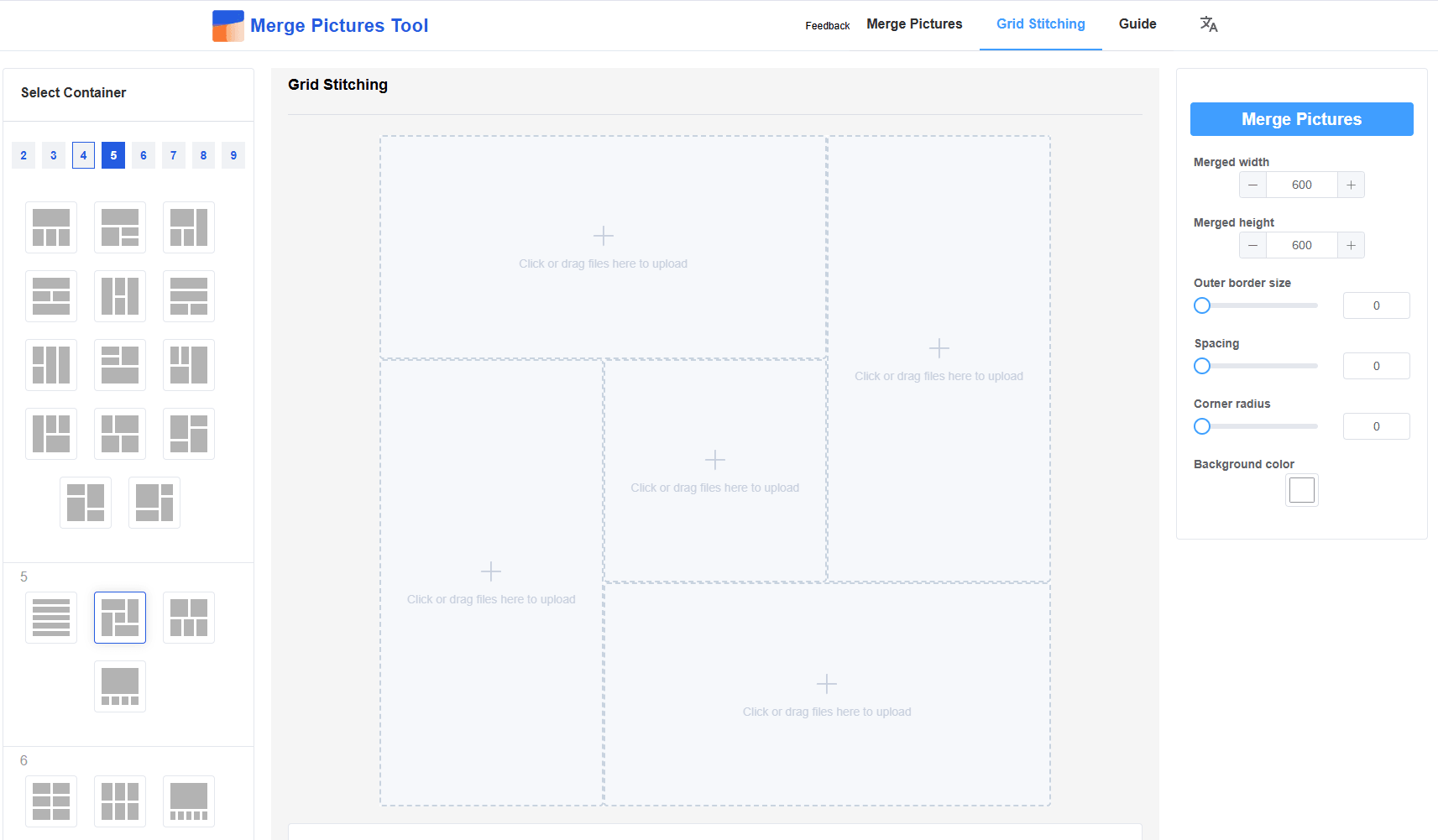
In today’s digital landscape, combining multiple images is a common task for creators, professionals, and everyday users alike—whether you’re crafting a collage of travel photos, assembling side-by-side product comparisons, or merging screenshots for a presentation. The challenge? Finding a tool that’s free, fast, and doesn’t compromise on quality or add intrusive watermarks. Enter MergePictures.net: the intuitive, browser-based solution designed to simplify merging multiple images online, with no software installation or hidden costs.
Why Choose MergePictures.net to Combine Multiple Images?
Before diving into the step-by-step guide, let’s break down why this tool stands out for multi-image merging:
- 100% Free & No Watermarks: Merge unlimited images without subscriptions, trials, or watermarks ruining your final output.
- No Installation Required: Access the tool directly in any browser (Chrome, Safari, Firefox) on desktop, mobile, or tablet—no apps to download.
- Intuitive Interface: Even if you’re new to image editing, the drag-and-drop design and clear prompts make merging seamless.
- Customizable Layouts: Choose vertical (stacked) or horizontal (side-by-side) merging to fit your needs.
- Secure & Reliable: Your images and data are processed safely, with feedback and usage data stored securely via Supabase (no unauthorized access).
Step-by-Step: How to Combine Multiple Images on MergePictures.net
Merging multiple images takes just a few clicks—follow these simple steps:
Step 1: Upload Your Images
Navigate to MergePictures.net and locate the upload zone (labeled “Click or drag files to upload here”).
- Option 1: Click the upload area to select multiple images from your device (supports JPG, PNG, and other common formats).
- Option 2: Drag and drop your images directly into the upload zone for faster processing. The tool will display thumbnails of your uploaded images, so you can confirm you’ve selected the right files.
Step 2: Arrange & Customize Your Layout
- Adjust Order: Drag and drop image thumbnails to reorder them—critical for before/after sequences or collages with a specific flow.
- Choose Layout: Toggle between vertical (images stacked top to bottom) or horizontal (images side by side) merging. The tool automatically resizes images to fit cleanly, no manual adjustments needed.
Step 3: Merge & Save Your Combined Image
Click the “Merge Images” button—processing takes only seconds, even for multiple images. Once complete:
- A pop-up window will display your fully combined image.
- Save it to your device using:
- The universal “Download” button in the pop-up (works on all devices).
- Right-click (Windows) or long-press (iOS) the image to save directly to your gallery or folder.
Your merged image is ready to use—no watermarks, no quality loss, and no extra steps.
Who Benefits from Merging Multiple Images with MergePictures.net?
This tool is built for everyone:
- Social Media Creators: Merge product shots, Reels thumbnails, or Instagram carousels to boost engagement.
- Professionals: Combine screenshots, report visuals, or client deliverables for polished presentations.
- Everyday Users: Create collages of family photos, pet moments, or travel memories without hassle.
- Students: Merge study notes, infographics, or project visuals for assignments.
Why MergePictures.net Beats Other Image Combiners
Unlike paid tools (e.g., Photoshop) or free tools with limitations (e.g., watermarks, max 2 images), MergePictures.net offers:
- Unlimited multi-image merging (no cap on the number of images per merge).
- Fast processing speeds (even on low-bandwidth connections).
- Multilingual support (adapt to your preferred language for ease of use).
- A dedicated feedback module to share suggestions and improve your experience.