
Introducing Watermark Pictures: Add Text and Logos, One Image or a Batch
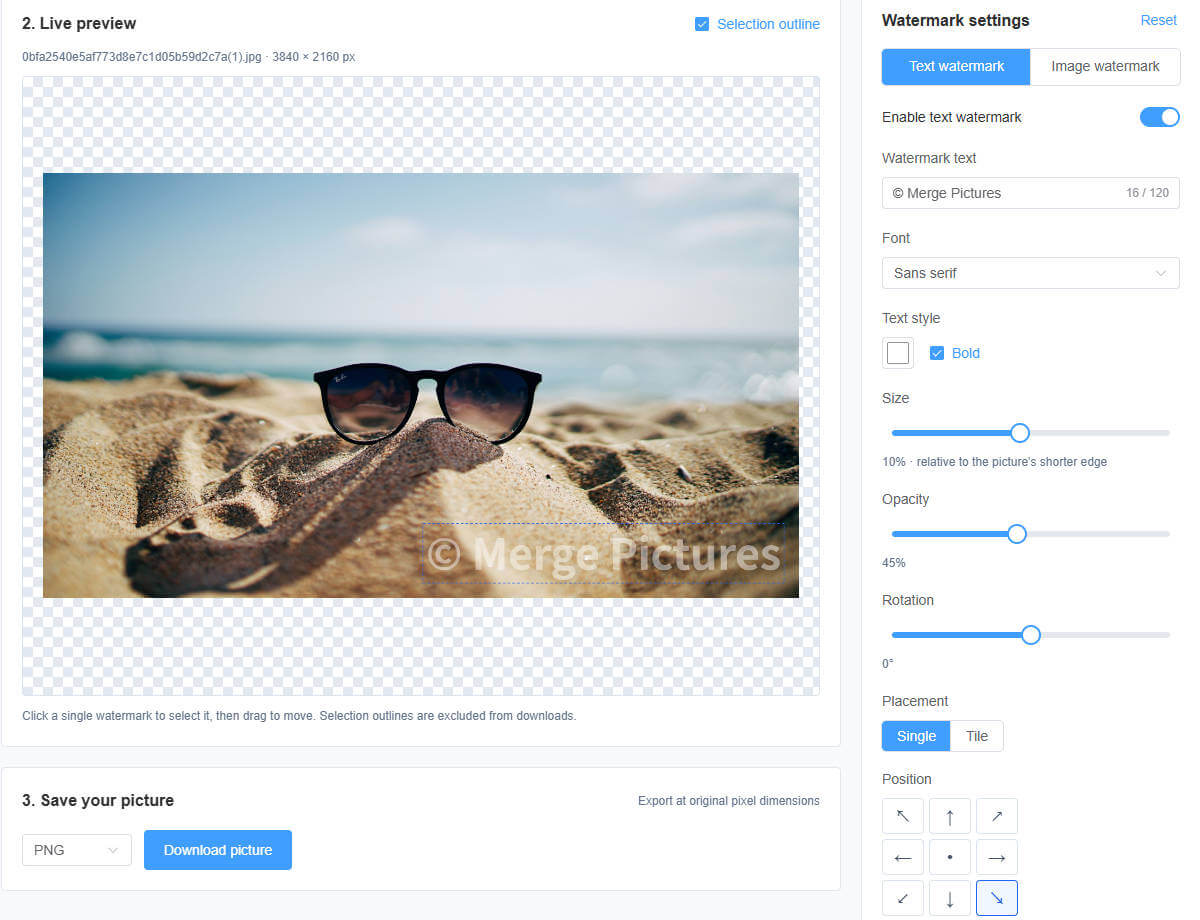
Whether you are publishing product photos, sharing photography, or marking screenshots for a specific purpose, you may need a signature on one picture or a consistent logo across a whole collection. The new Watermark Pictures tool in MergePictures supports text watermarks, image watermarks, and batch processing in one workspace.
Open Watermark Pictures from the navigation bar and select your images to begin. Editing and export happen locally in your browser, without uploading your pictures.
Use text, a logo, or both
Enter a name, brand, website, or usage note to create a text watermark. Adjust the font, color, bold styling, size, opacity, and rotation to suit your image.
You can also select an image to use as a watermark. A PNG logo with a transparent background works well for blending your branding into a photo. Enable text and image watermarks separately or combine them—for example, a brand logo alongside a store website on a product photo.
Place a signature or tile the image
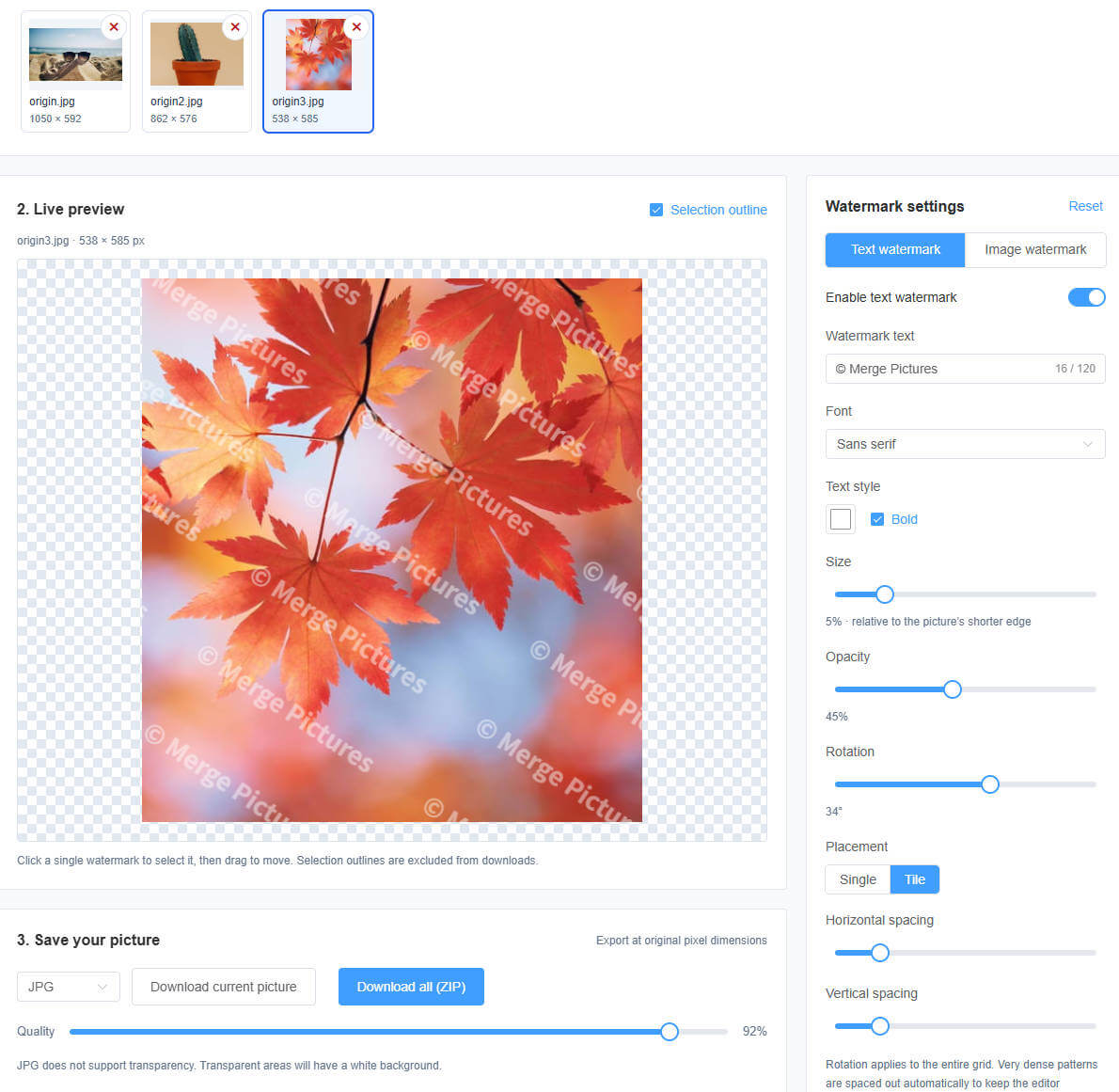
For a simple signature, choose one of nine preset positions or drag a single watermark in the preview to fine-tune its placement. To repeat a watermark across the image, switch to tiled mode and adjust its rotation and horizontal and vertical spacing.

Set up once for multiple pictures
Select several pictures at once or append more as you work, then configure the watermark they will share. Click a thumbnail to check the result on landscape images, portraits, and pictures of different sizes.
All pictures in a batch share one set of watermark settings. Watermark sizes and positions are applied proportionally to each image. Before exporting, check different compositions to make sure the watermark does not cover the subject. Download the current picture individually or save the batch as a ZIP file. Batch export shows progress, and you can review and retry any failed items.
JPG by default, with PNG and WebP options
Exports default to JPG and retain each picture’s original pixel dimensions. You can also choose PNG or WebP, with adjustable export quality for JPG and WebP.
Choose PNG or WebP when you need to preserve transparency. JPG does not support a transparent background, so transparent areas are filled with white. Editing guides are excluded from exported pictures.
Keep your preferred settings for next time
The tool saves watermark text, styling, placement, export format, quality, and other settings in your current browser’s local storage. When you return, it restores your saved configuration. If you previously chose PNG or WebP, that choice is restored too. Reset the settings whenever you want a fresh start.
Original pictures and logo files are neither saved with these settings nor uploaded to a server. You will need to select those files again after refreshing or reopening the page. Settings stay on the current device and browser, and clearing the site’s data removes them.
Ready to add a signature or your brand? Open Watermark Pictures and start with one photo or a whole collection.