
PNG vs JPG vs WebP vs BMP: Which Image Format to Choose?
Start with JPG for photos, PNG for text screenshots, and WebP for web images where file size matters. Use BMP when a specific application requires it. JPG and JPEG are the same image format with different filename extensions.
The best choice depends on the image content, transparency, download size and the application receiving your file. Here is how those differences apply to MergePictures.
PNG vs JPG vs WebP vs BMP at a glance
| Format | Compression and quality | Transparency | Best suited to |
|---|---|---|---|
| PNG | Lossless; preserves exported pixel detail, but photos can be large | Full alpha transparency | Text screenshots, diagrams, transparent logos |
| JPG / JPEG | Lossy; efficient for photos, with artifacts at stronger compression | No | Photo collages, product photos, sharing |
| WebP | Supports lossy and lossless; this site currently exports lossy WebP | Full alpha transparency | Website images, photos with a size budget |
| BMP | Commonly uncompressed and large; compressed variants also exist | Do not rely on portable transparency | Legacy applications that require BMP |
File size depends on pixel dimensions, image complexity, encoder and quality settings. WebP is not always the smallest, and PNG is not always the largest: compare actual exports.
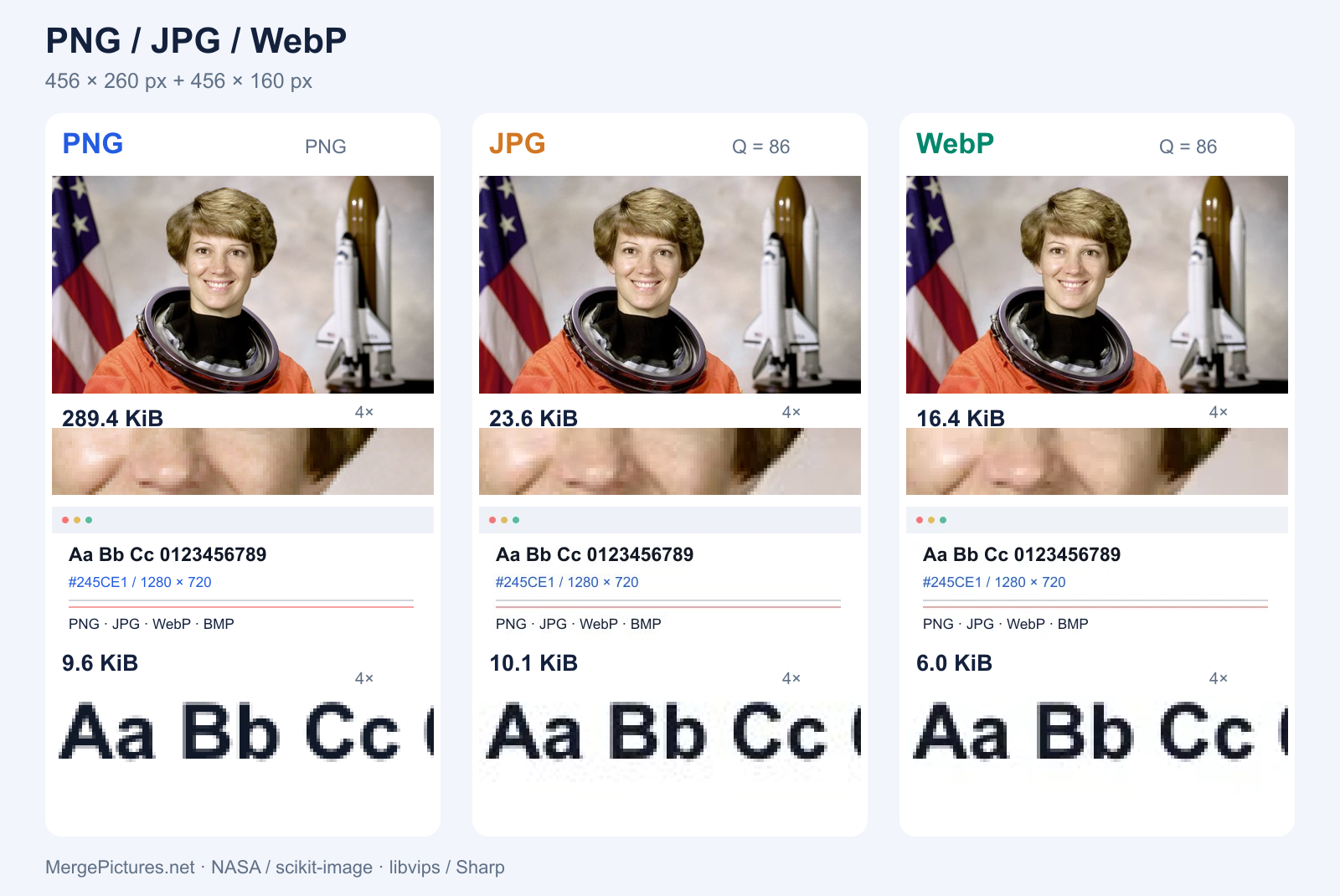
Measured with Sharp: PNG is lossless; JPG and WebP use quality 86. Quality scales differ between encoders. Photo: NASA / scikit-image; the text sample is illustrative. These are sample encodings, not browser export benchmarks.
Is JPG different from JPEG?
.jpg and .jpeg both use JPEG encoding. Changing the extension does not improve quality. With the same source, encoder and settings, neither extension is inherently sharper. In MergePictures, both choices use JPEG encoding and download with a .jpg extension.
JPEG suits continuous-tone photos. Small text, thin lines and high-contrast edges are more likely to show compression artifacts. Keep an original and export a sharing copy at the end, since repeated lossy saves can accumulate damage.
PNG or JPG for merged images?
Choose PNG for chat records, tutorial screenshots and charts. Its lossless compression avoids adding JPEG-style artifacts to text edges. See our guide to merging screenshots for documentation layouts.
Try JPG for travel photos, product photos and photo collages. It often offers a practical size for photographic content. Inspect faces, textures and small lettering at the intended display size before sharing.
Lossless does not mean restored: converting a blurry JPG to PNG cannot recover lost detail. Enlarging a small image also does not create real detail.
When should you choose WebP?
WebP is widely supported by modern browsers and is useful for website images. Depending on the content and encoder settings, it can offer a smaller file with visual quality close to a JPG or PNG.
MergePictures currently uses lossy WebP export settings; selecting WebP does not mean a lossless export. Check that your marketplace, office software or older application accepts .webp. Use JPG when broad compatibility matters, or PNG when preserving text detail matters most.
Transparency depends on the format and the editing tool
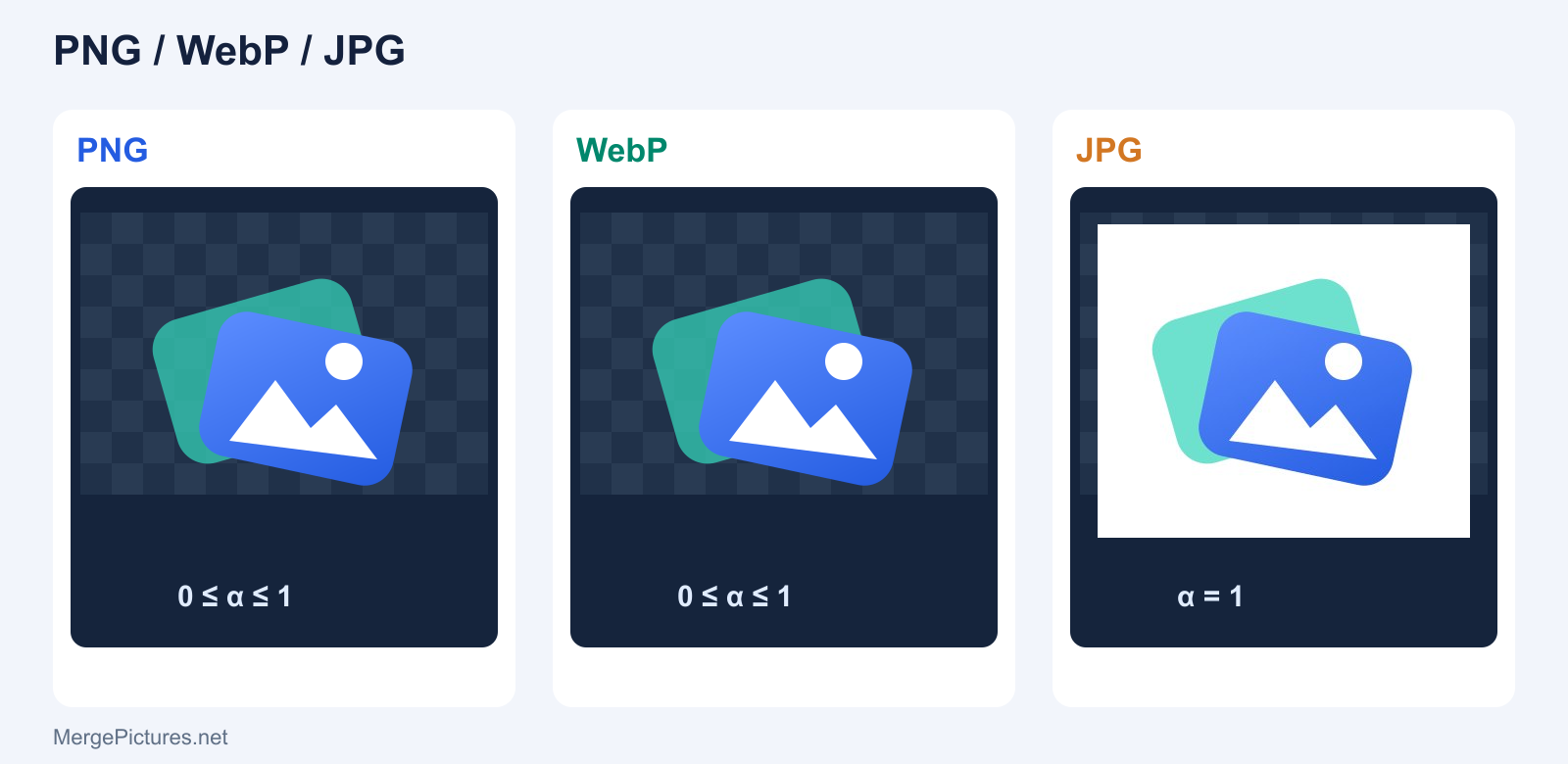
PNG and WebP can store transparent pixels; JPG cannot. Flatten a transparent logo onto an intentional background before saving it as JPG.
You can use a transparent PNG logo in the image watermark tool. Preserving transparent areas in the output depends on the source, output format and editing process. The merge and grid tools currently paint a background, so selecting PNG or WebP does not automatically create a transparent canvas.
BMP vs PNG, and what the BMP option downloads
Common BMP files store bitmap pixels without compression and are often much larger than compressed alternatives. That does not make them sharper than a PNG containing the same pixels. Use PNG unless the receiving application specifically needs BMP.
Selecting BMP in the merge or grid tool currently downloads a .png file. If your workflow requires a real BMP, convert using software with a BMP encoder and check the output. Renaming .png to .bmp does not convert the image.
How to choose an export format in MergePictures
- Open Merge Pictures or the photo grid tool, select your images and arrange them.
- Set the horizontal, vertical or grid layout, dimensions, spacing and background.
- Choose PNG, JPG/JPEG or WebP in the format selector, then preview and download.
- Check the actual file size, extension and detail, and open it in the destination application. The watermark tool offers JPG, PNG and WebP, with adjustable JPG / WebP quality.
Image processing runs locally in your browser, without uploading image files to a server. Available export choices vary by tool.
Frequently asked questions
Which image format has the best quality?
PNG is a reliable choice for preserving the current pixel detail. Source quality, resizing and output dimensions still determine the result; a format cannot repair blur.
Which image format is best for SEO?
An extension alone does not improve rankings. Use a supported format, appropriate pixel dimensions, a reasonable file size, a descriptive filename and accurate alt text alongside relevant content. WebP can help reduce image weight; PNG can suit sharp text and transparent details.
Can I export GIF, AVIF or HEIC?
The merge, grid and watermark tools discussed here do not currently offer those export choices. Reading such source files depends on the browser and tool. Import support does not imply export support, and merging should not be assumed to preserve GIF animation.
Why did changing the format make my file bigger?
Saving an already compressed JPG as PNG, or increasing pixel dimensions, can increase size. Compare files at the same dimensions and judge visible quality as well as bytes.
Continue with how to merge two pictures, or read the MDN image file type guide for more format details.